
Let me tell you what stopped me from starting for longer than I’d like to admit.
I thought I needed to set everything up perfectly first.
The right software. The right system. The right setup. And then I’d begin.
That “right setup” never arrived. And the months kept passing.
The truth is embarrassingly simple.
You need a blank document, a keyboard, and the decision to write something today.
But I also understand that “just start writing” is easier said than done when you don’t know which tools are worth your time and which ones will just get in your way.
So in this post I’m going to walk you through the four tools I actually use and recommend.
All of them are free. All of them are enough to start and grow a serious content writing practice.
No excuses left after this.
1. Microsoft Word — The One You Already Have
You’ve probably used MS Word since school.
Which means you already know how it works, and there’s zero learning curve.
Open a blank document. Give it a title. Write your introduction. Add your main sections. Write a conclusion. That’s a blog post.
Seriously, that’s it. The tool is not complicated.
And the familiarity of it removes one more reason to delay starting.
Word is good for drafting articles, writing eBooks, and formatting longer documents. The layout is clean, the formatting is flexible, and most clients are comfortable receiving Word files.
But here’s the honest limitation. And it’s a big one.
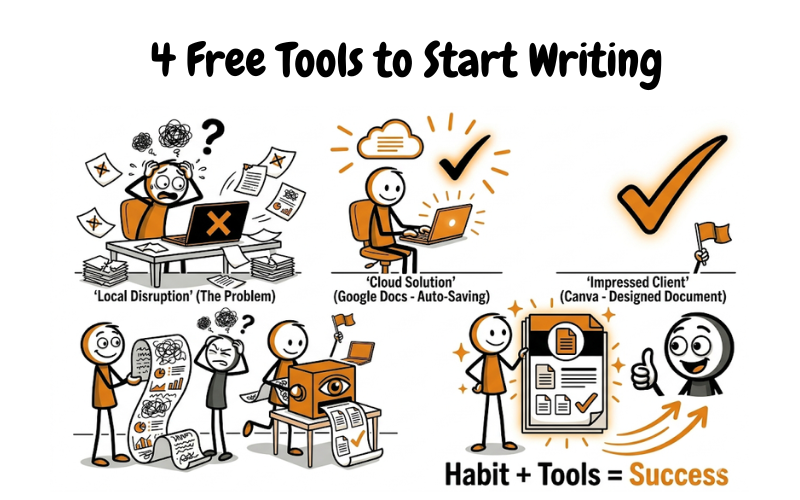
Word saves files to your computer. Only your computer. If your hard drive crashes, if you forget to hit save, if you’re on a different device — your work is gone.
I lost an entire article this way once. Two hours of work. Just gone.
That was the day I switched to Google Docs for almost everything.
✏️ Try this now: Right now, open MS Word or any blank document. Set a title on the first line: “How to [solve one specific problem your reader has] in [X] steps.” Write 100 words underneath. Don’t edit. Don’t reread. Just 100 words. That’s your first content writing practice session done.
2. Google Docs — The One That Has Your Back
Google Docs is what I use for almost everything now.
Not because it’s fancy. Because it never loses my work.
It saves automatically, every few seconds, without you doing anything. There is no save button. There is no “do you want to save before closing?” It just saves. Always.
And because it lives on Google Drive — in the cloud — you can access it from any device, anywhere.
Your laptop. Your phone. Your friend’s computer at midnight when you have a deadline.
Google Drive gives you 15GB of free storage with a Gmail account. That’s enough to store years of writing. Google Docs, Google Sheets, Google Slides — all included, all free.
But the feature that changed how I work with clients is the collaboration. You can share a Google Doc with a client and they can leave comments, suggestions, and edits directly in the document.
No more emailing Word files back and forth.
No more “which version is the final one?” confusion.
Everything is in one place, with a full history of every change ever made. That kind of professionalism — even as a beginner — builds trust with clients faster than almost anything else.
Google Docs also has templates — resumes, proposals, letters, brochures. You can edit these and use them as starting points for different content formats.
✏️ Try this now: Open Google Docs right now (docs.google.com — free with any Gmail account). Create a new blank document. Write the same 100-word practice piece you wrote in Word. Then share the document with yourself on a different device. Watch it appear instantly. That’s the difference between local and cloud. You’ll never go back.
3. Hemingway App — The One That Tells You the Truth
Most of us think our writing is clearer than it actually is.
The Hemingway App exists to correct that assumption.
It’s a free online tool (hemingwayapp.com) with two modes: Write and Edit.
Write mode is just a clean space to type. Basic formatting — bold, italic, headings. Nothing distracting.
Edit mode is where it gets interesting. Paste your writing in and the app immediately highlights sentences that are hard to read in yellow and sentences that are very hard to read in red.
It tells you your readability grade. It flags passive voice. It points out adverbs you probably don’t need.
It doesn’t tell you your writing is bad. It shows you exactly where it gets heavy.
The first time I used it, I was humbled. Sentences I thought were perfectly clear were flagged yellow. I rewrote them. They were better.
Here’s the thing about reading on the web. People don’t sit with complicated sentences. They move on. Fast.
A yellow sentence in Hemingway is a sentence your reader might give up on.
And a reader who gives up is a reader you’ve lost.
Use Hemingway after you draft. Not while. Write freely first, then run it through and tighten what needs tightening.
✏️ Try this now: Take something you’ve already written — any paragraph, any email, anything. Paste it into hemingwayapp.com and switch to Edit mode. Count the yellow sentences. Now rewrite each one until the yellow disappears. Read both versions out loud. You’ll hear the difference immediately. This one exercise will teach you more about readable writing than most courses do.
4. Canva — The One That Makes Your Writing Look Like It Belongs
Writing that looks good gets read more than writing that doesn’t.
That’s not shallow — it’s just human nature.
Canva is a free design tool (canva.com) that lets you turn your written content into something that looks professionally designed — without knowing anything about design.
You’ve probably seen it mentioned for social media posts or presentations. But for content writers, the real power is in documents.
You can take an eBook you’ve written in Google Docs, bring it into Canva’s A4 document template, and within an hour have something that looks like a professionally published guide.
Add a cover page. Structure the sections with clean headings. Drop in free stock images from Canva’s library. Duplicate pages to keep the formatting consistent throughout. Export the whole thing as a PDF.
That PDF can be a lead generation asset. It can be a paid product. It can be a portfolio piece.
It can be proof that you take your work seriously — even before you have paying clients.
I remember the first eBook I formatted in Canva. It was the same writing I’d done in Google Docs. But when I saw it designed properly — cover, layout, structure — I felt like a professional for the first time.
That feeling matters. Not because it’s about looks — but because when you believe your work is worth presenting well, the quality of the work itself rises to match.
✏️ Try this now: Go to canva.com and create a free account. Search for ‘A4 document’ in templates. Pick any clean, simple one. Now take a 300-word piece of writing you already have — or write one quickly — and paste it in. Add a title at the top. Export as PDF. You just created your first formatted content piece. Save it. This is your first portfolio sample.
You Now Have Everything You Need to Start
Four tools. All free. All accessible right now on your phone or laptop.
MS Word for drafting when you want something familiar and offline.
Google Docs for everything else — drafting, collaborating, storing, sharing.
Hemingway App for checking readability and tightening your writing after the first draft.
Canva for turning your writing into something that looks like it was made by someone who takes their work seriously.
That’s a complete writing setup. No paid subscriptions. No complicated software.
Just four free tools and the habit of showing up and writing.
The habit is the thing. Tools don’t write content. You do. But the right tools make it easier to start, easier to improve, and easier to present your work in a way that builds trust.
And trust — as we’ve said throughout this series — is what everything is built on.
The next post goes deeper into Google Docs specifically — the features that make it the best tool for building a consistent writing habit and working professionally with clients from day one. That’s coming next.
If you’re just joining this series, go back to the previous post first. Each post builds on the one before it.
And if this helped you finally feel ready to open that blank document and start — that’s all I was hoping for.
Drop a comment and tell me which tool you’re starting with. I read every one.
— Hema Varman